
PowerShell Project
Archive Data Automation Project
A PowerShell-driven archive workflow built to improve consistency, reduce manual handling, and support repeatable data management processes.
Background
Periodically, I would send company-wide emails asking staff to review the data they were storing on the company file server and determine whether it was still required or could be safely archived.
In practice, this approach proved ineffective. Many staff ignored the emails entirely, and those who did respond typically removed only small amounts of data — often just a few gigabytes. This made little impact when the overall storage usage was measured in terabytes.
As a result, the organisation repeatedly expanded its storage capacity. However, the real issue was not a lack of storage, but a lack of an efficient process to move older, rarely used data to the archive system.
Because the process relied entirely on manual action from users, it was difficult to manage consistently across the organisation. To solve this problem, I decided to automate the archiving process.
I chose to build the solution using PowerShell because it is natively available in Windows environments and provides powerful automation capabilities without requiring additional software or dependencies.
Project Objectives
The primary goal of the project was to automatically archive data that is no longer actively used without relying on individual users to manually review and move their own files.
The system needed to identify folders that had not been accessed for a defined period of time and move them to the organisation’s archive storage. Automating this process ensures that older data is regularly archived, helping to reduce the amount of storage consumed on the primary file server.
However, it was also important to ensure that critical or frequently used folders were not archived unintentionally. To address this, the solution includes several safeguards, including exclusion rules that prevent specific folders from being processed.
Another key requirement was visibility. When a folder is archived, the action is recorded in an audit log so administrators can see exactly what data was moved and when. This also makes it possible to restore archived data if it is required in the future.
By automating the archiving process and introducing logging and safeguards, the system helps ensure that storage is managed more efficiently while still allowing archived data to remain accessible if needed.
Solution Design
The automation was implemented using PowerShell. As the script is intended to run on a Windows server, PowerShell was a natural choice because it integrates directly with the Windows operating system and file system.
PowerShell also provides strong administrative capabilities, making it well suited for tasks such as scanning directories, analysing file metadata, and automating file management processes.
The script periodically scans defined directories and analyses folder metadata such as Last Access Time and Last Modified Time. By evaluating this information, the script can identify folders that have not been used for an extended period of time and are therefore eligible for archiving.
To ensure the process remains safe and controlled, the script checks an exclusion list before processing any folder. This allows specific directories to be permanently excluded from the archiving process if they contain important or frequently accessed data.
Key Features of the Script
Automated Scheduled Execution
The script is configured to run automatically at scheduled times outside of normal working hours. Running the process during off-peak hours ensures that the scanning and archiving process does not interfere with users who may be actively accessing the system during the day.
Metadata-Based Folder Analysis
When the script runs, it scans the defined directories and evaluates folder metadata such as Last Access Time and Last Modified Time.
This information is used to determine whether a folder is still actively used or if it is eligible for archiving.
Reliable Data Transfer Using Robocopy
For transferring archived data, the script uses Robocopy, a file transfer module built by Microsoft designed for reliable file replication.
During early development, I experimented with writing a custom file transfer function. However, after further research I realised that Robocopy already provides a far more efficient and resilient solution, so it was integrated into the script instead.
Using Robocopy also ensures that file permissions, timestamps, and directory structures are preserved during the transfer process.
Test Mode for Safe Execution
During development and testing, it was important to ensure the script could be safely validated without moving any live data.
To support this, I implemented a test mode within the script.
When test mode is enabled, the script performs the full scanning and analysis process and identifies folders that would normally be archived. However, instead of transferring any data, the script only generates logs and reports showing what actions would have been taken.
This allowed the archiving logic to be tested and refined without any risk to production data. Once the results were verified, the script could be run in its normal mode to perform the actual archiving.
Logging and Audit Tracking
Each execution of the script generates detailed logs that record folders that were scanned, any data that was archived, and any errors encountered during execution.
This provides a clear audit trail and allows administrators to review what actions were taken.
Detailed Reporting
In addition to standard logs, the script generates a summary report that lists all folders moved to the archive and highlights any issues encountered during processing.
This makes it easier to investigate problems and confirm that the archiving process is functioning as expected.
Code Example
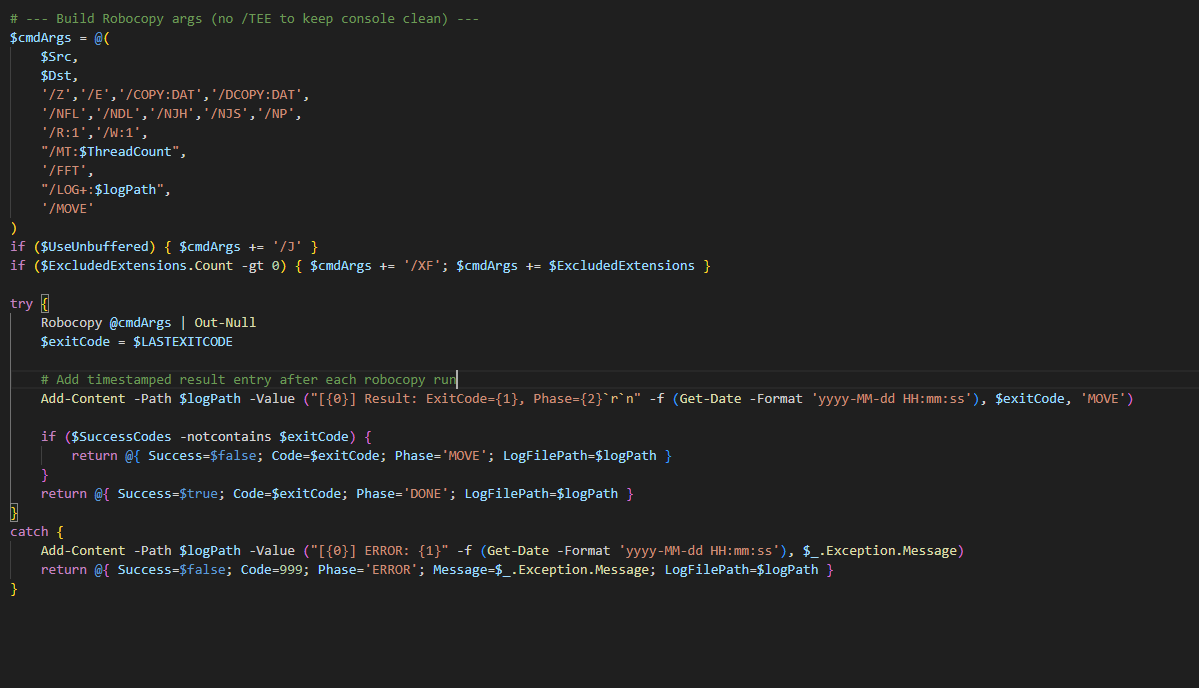
A screenshot from the project is included below to show part of the PowerShell logic used to support the archive workflow.
This gives a quick view of the implementation without exposing full internal paths, server names, or other environment-specific details.
Process Flow
A simplified view of the workflow is shown below, from scheduled execution through scanning, exclusion checks, transfer, and reporting.
Scheduled Task Starts
The script runs automatically at the configured time.
Scan Target Folders
Defined locations are reviewed to identify folders for evaluation.
Check Exclusion List
Protected folders are matched against the stored exclusion entries.
Excluded?
Skip the folder and continue scanning.
Check last access and last modified dates.
Meets Archive Rules?
Leave the folder in place for now.
Move on to execution mode checks.
Test Mode Enabled?
Log the planned archive action without moving data.
Transfer the data using Robocopy.
Verify and Report
Results are logged and included in the summary report for review.
Outcome
Even while still in testing, the project demonstrates a practical way to reduce reliance on manual user action when managing file server storage.
By identifying older data, applying exclusions, and recording actions through logs and reports, the solution creates a more controlled and repeatable archive process.
For the organisation, the main benefit is improved storage management with less administrative overhead. For me, the project also demonstrates hands-on experience designing automation that connects scripting, operational safeguards, and a simple supporting web interface.
Managing Archive Exclusions (Web Interface)
During development of the project, I realised that managing exclusions manually would quickly become inefficient.
If a folder needed to be excluded from the archive process, staff would have to contact an administrator to have it added to the exclusion list. This would create unnecessary overhead and introduce a dependency on a single administrator.
To solve this, I developed a small internal web interface that allows authorised users to manage archive exclusions themselves.
The original idea was to let users type the folder name into a simple form. However, this created too much risk because a mistyped folder name, spelling difference, or incorrect entry could prevent the exclusion from matching properly.
To reduce that risk, I built a graphical web interface that works more like a normal file system browser. The design is based on Windows File Explorer, as this is already familiar to most users. It includes a search box, visible folder levels, and a file tree so users can navigate through the structure and select the correct folder rather than having to know and type its exact name.
This made the exclusion process more reliable and easier to use. Users can browse to the folder they want to protect, which reduces the chance of excluding the wrong location or submitting an entry that does not match anything and could still be archived.
When a folder is selected through the interface, the information is stored in a database. The PowerShell script retrieves this exclusion list during its scanning process and skips any folders that match the stored entries.
This approach allows archive exclusions to be managed without requiring direct changes to the script.
Testing & Validation
Over 40 individual test scenarios were performed covering file system edge cases, permissions, exclusion rules, error handling, and recovery from partial operations.
This ensured the script behaved predictably before being considered for production deployment.
Current Status & Future Improvements
The project is currently in the final stages of development and testing. Test mode has been used to validate the archiving logic and confirm that folders are correctly identified based on their metadata.
Once testing is complete, the script will be deployed as a scheduled task on the file server so that the archiving process can run automatically.
Future improvements may include enhanced reporting and monitoring, improved user permissions for managing exclusions, additional safeguards for critical directories, and long-term storage usage reporting.
Challenges & Lessons Learned
As the project is still in development and has not yet been deployed into production, there will likely be additional lessons once the system is fully implemented and used in a live environment.
One of the most important lessons learned so far is the importance of spending more time planning the overall design before beginning development.
When I first started working on the solution, I focused primarily on writing the PowerShell script itself. At that stage, I had not fully considered how the system would be implemented within the production environment or how users would interact with it.
As development progressed, several practical issues emerged that required changes to the design. This meant reworking parts of the script and the surrounding processes.
Another key lesson came after completing testing in the controlled test environment. I initially expected moving toward live validation to be as simple as changing the source path, so I tested against a specific low-risk folder on the live file system that could be recovered from backups if required. However, this exposed issues that had not appeared during NAS-to-NAS testing. The script initially failed to identify folders correctly because of how paths were being passed into the archive logic. After resolving that, further testing showed that the post-archive process was stripping content from folders once the archive action had completed.
This made it clear that a successful test environment result does not automatically mean the same workflow is ready for production. The live environment introduced differences in path structure, folder handling, and cleanup behaviour that needed to be validated separately. I am now working through those issues before allowing the script to run a full live scan.
This experience highlighted the value of mapping out the complete workflow before beginning development. In future projects, I would spend more time researching the problem and creating a clear step-by-step design of how the solution will operate within the wider system.
Despite these challenges, the project has been a valuable learning experience and has helped strengthen my understanding of automation design, system integration, and the importance of planning when developing tools intended for production environments.
Final Reflection
This project reinforced the value of using automation to solve operational problems that are too inconsistent to manage manually at scale. By combining PowerShell, Robocopy, logging, and a simple exclusions workflow, I was able to design a more structured and dependable approach to archive management.
It also highlighted that successful automation is not only about writing the script itself. The surrounding process, the safeguards built into it, and the way users interact with the solution all play an important role in whether the system is practical in a real environment.
Overall, this project reflects the way I approach technical problems: identifying where time is being lost, designing a solution that reduces manual effort, and refining that solution so it is reliable enough to support day-to-day operations.