
Outlook Classic Guide
Common Outlook Classic Issues (And How to Fix Them)
Clear explanations of real-world Outlook errors, what they actually mean, and how to resolve them properly.
Understanding Common Outlook Error Codes
Access & Sign-In Errors
These typically relate to authentication or server communication issues.
| Error Code | What It Actually Means |
|---|---|
| 0x800CCC92 | Mailbox authentication was rejected, usually because credentials or cached sign-in tokens are invalid |
| 0x800CCC90 | The mail server returned a logon or authentication failure |
| 0x80040111 | MAPI logon failed, so Outlook could not establish a mailbox or profile session |
| 0x80070005 | Access denied - Outlook does not have permission to the mailbox, resource, or file |
In many Microsoft 365 environments, these are often tied to stale authentication tokens, permissions, or profile configuration rather than a mistyped password alone.
OST / PST / Data File Errors
These relate to local mailbox data files.
| Error Code | What It Actually Means |
|---|---|
| 0x8004010F | Outlook cannot find or access the configured data file or send/receive object |
| 0x80040600 | Outlook data store contains corrupted data, commonly involving a PST or OST file |
| 0x80040116 | Disk read/write error while Outlook is accessing the data file |
These errors often require profile repair, data file repair, or in some cases full profile recreation.
The Most Common Real-World Issue: Silent Authentication Failure
One of the most frustrating issues I encounter is when:
- Outlook stops syncing
- No clear login prompt appears
- The user insists their password has not changed
- There is no obvious error explaining the issue
In many cases, Outlook has silently failed to refresh its Microsoft 365 authentication token. Because Outlook Classic stores authentication data locally, it can become stuck in a state where the mailbox works perfectly online but the desktop app refuses to sync.
Step-by-Step Troubleshooting Process
Step 1 - Confirm the Mailbox Works Online
Before making any local changes, confirm the account itself is functioning:
- Log into Microsoft 365 via a web browser.
- Confirm emails are arriving.
- Confirm mail can be sent.
Step 2 - Restart the Machine
Restarting can:
- Clear temporary authentication states
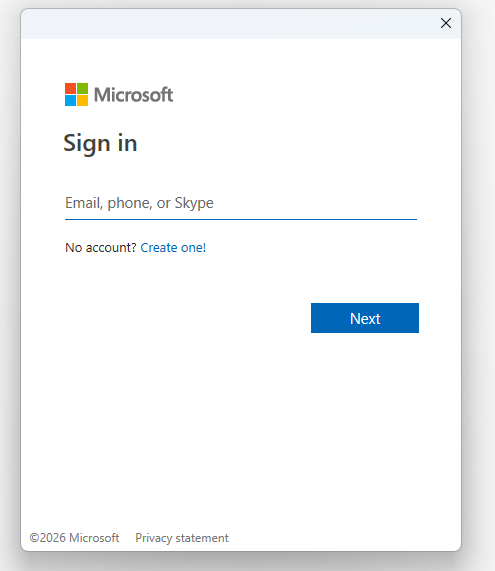
- Trigger a fresh sign-in prompt
- Reset background Office services
Step 3 - Clear Local Authentication Cache
Fully close Outlook before proceeding.
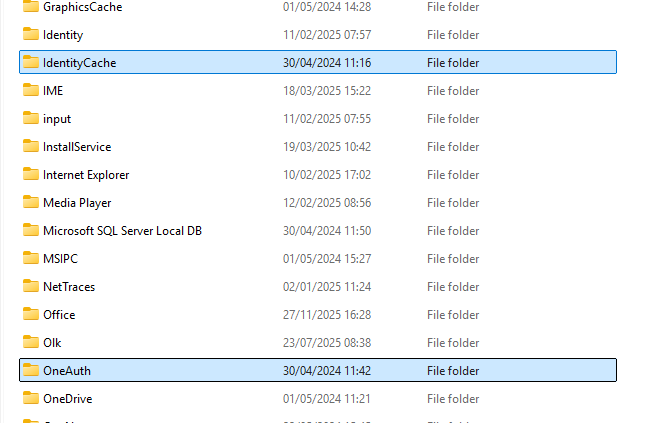
Navigate to:
%LOCALAPPDATA%\Microsoft\IdentityCache\%LOCALAPPDATA%\Microsoft\OneAuth\Delete the contents inside these folders (not the folders themselves). This forces Outlook to regenerate credentials.
Step 4 - Check Windows Credential Manager
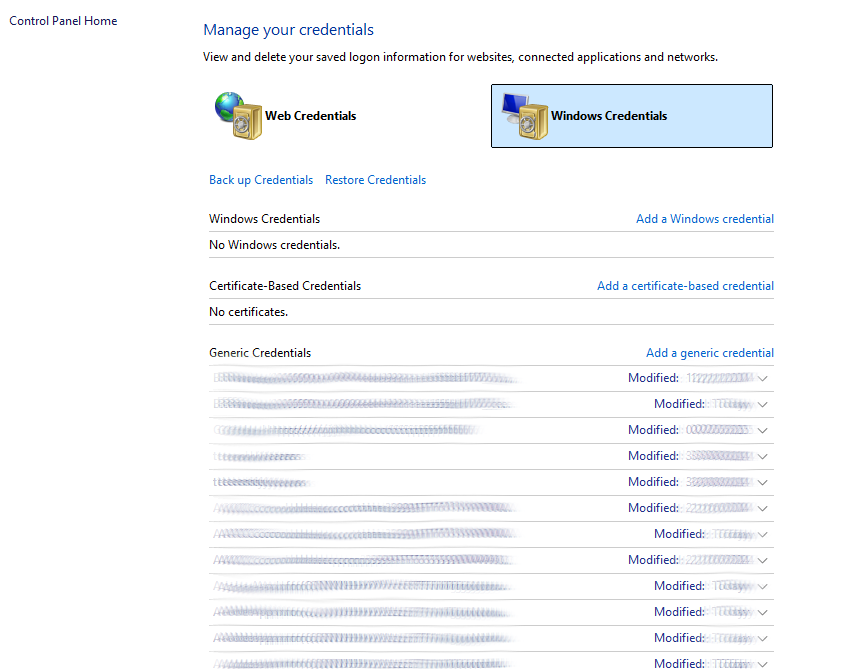
- Open Credential Manager
- Remove saved Microsoft 365 or Office credentials
- Restart Outlook
Creating a New Outlook Profile
Why Outlook Profiles Matter
Outlook Classic creates a local offline copy of your mailbox stored in OST (Exchange/M365) or PST (POP/archive) files. If this configuration becomes corrupted, Outlook may fail even though the mailbox itself is healthy.
Step-by-Step: Create a New Profile
- Close Outlook and confirm no Outlook.exe processes are running.
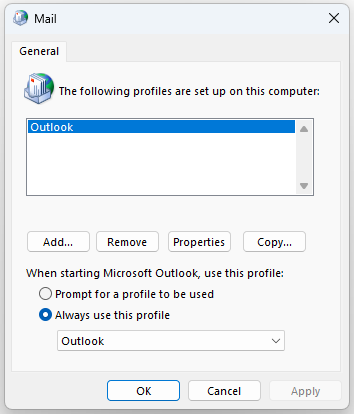
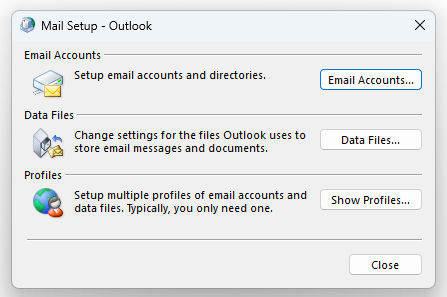
- Open Control Panel -> Mail (Microsoft Outlook).
- Click Show Profiles -> Add.
- Name the new profile (different from the old one).
- Select "Always use this profile" and choose the new profile.
- Skip manual setup - Outlook will prompt for Microsoft 365 login on launch.
Outlook will then rebuild the OST file and resync mailbox data. Recent emails appear first; older mail may take time to download.
Removing the Old Profile
Once confirmed working: Control Panel -> Mail -> Show Profiles -> Remove the old profile. This deletes the local configuration only, not Microsoft 365 data.
When to Escalate Further
If profile recreation does not resolve the issue, investigate:
- Conditional Access or MFA policy changes
- Azure AD sign-in logs
- Microsoft 365 licence assignment issues
- Testing the account on another machine
- Office Online Repair
- Possible Windows user profile corruption
Final Thoughts
In my experience, most Outlook Classic issues fall into three categories:
- Authentication token failure
- Profile corruption
- Data file corruption
By approaching troubleshooting methodically, starting with authentication checks and progressing to profile recreation, most issues can be resolved quickly and reliably.